Sign In with Your Passkey
Company Wi-Fi sign-in, device setup and the VPN now use a passkey instead of a password and a texted code. Set your passkey up once; after that you sign in with Face ID, Touch ID or your PIN.
For EmployeesGuests use a Voucher code (or an Access code, where offered) on the Wi-Fi page. This guide is for employees signing in with a work account.
How it works
1Set up your passkey (one time)
Do this on a normal internet connection, such as cellular data or home Wi-Fi, not the office guest Wi-Fi.
- Open your security info
Go to
aka.ms/mysecurityinfoand sign in with your work account the way you do today. - Add a passkey
Tap + Add sign-in method and choose Passkey (it may say Passkey in Microsoft Authenticator). Follow the prompts to save it on your phone, in Microsoft Authenticator or another place your IT team allows, or on a security key.
- Check it's there
Your passkey now shows in the Security info list.
2Join the Wi-Fi and pick your option
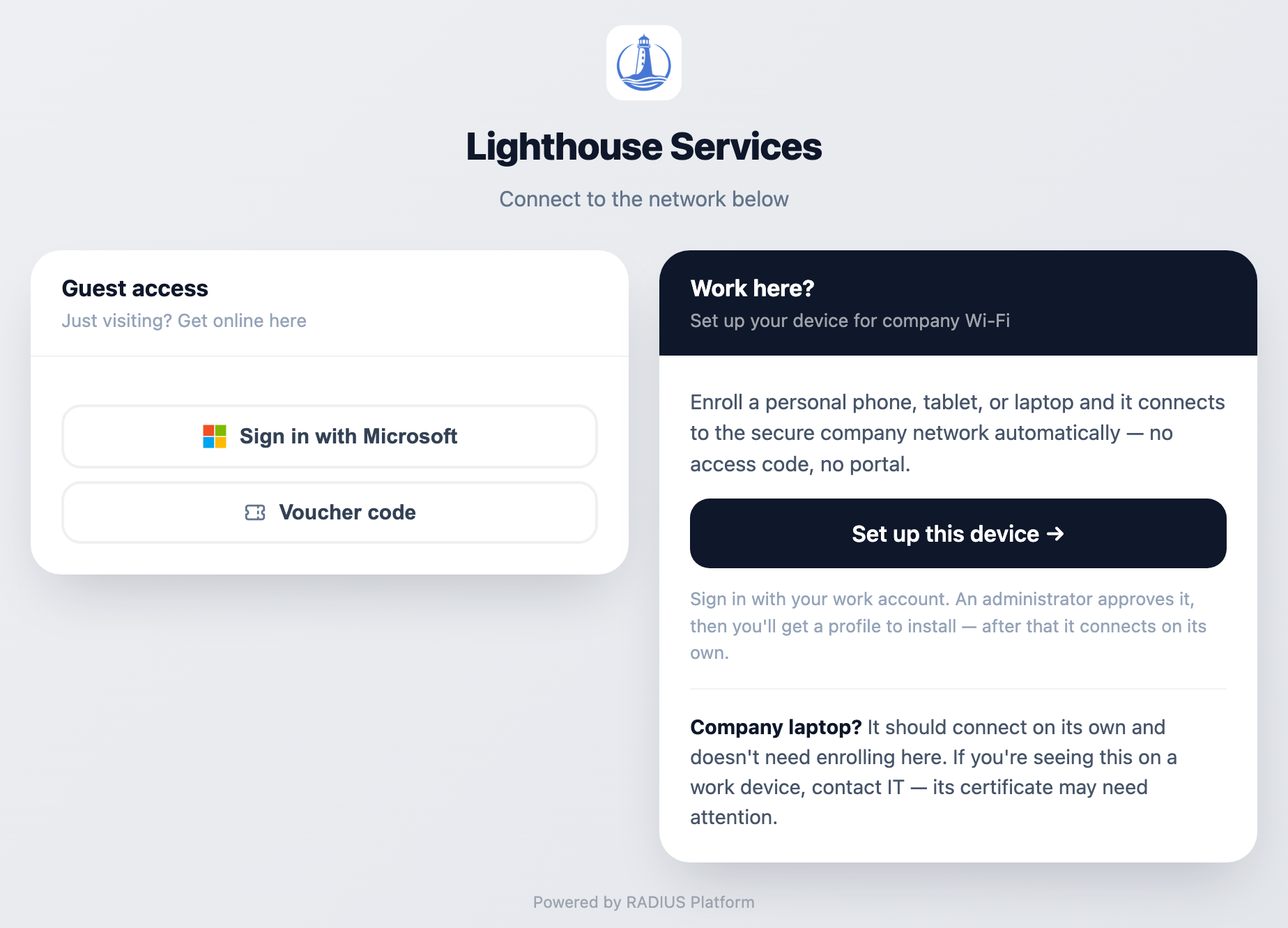
Connect to the office guest Wi-Fi (for example LHS Guest). A sign-in page opens. On an iPhone it pops up in a window titled Captive Wi-Fi.
- Set up this device → (under Work here?): add a personal phone, tablet or laptop to the secure company Wi-Fi. It connects on its own from then on.
- Sign in with Microsoft (under Guest access): get internet access on this device with your work account.
3If you see “Finish in Safari”, switch to Safari
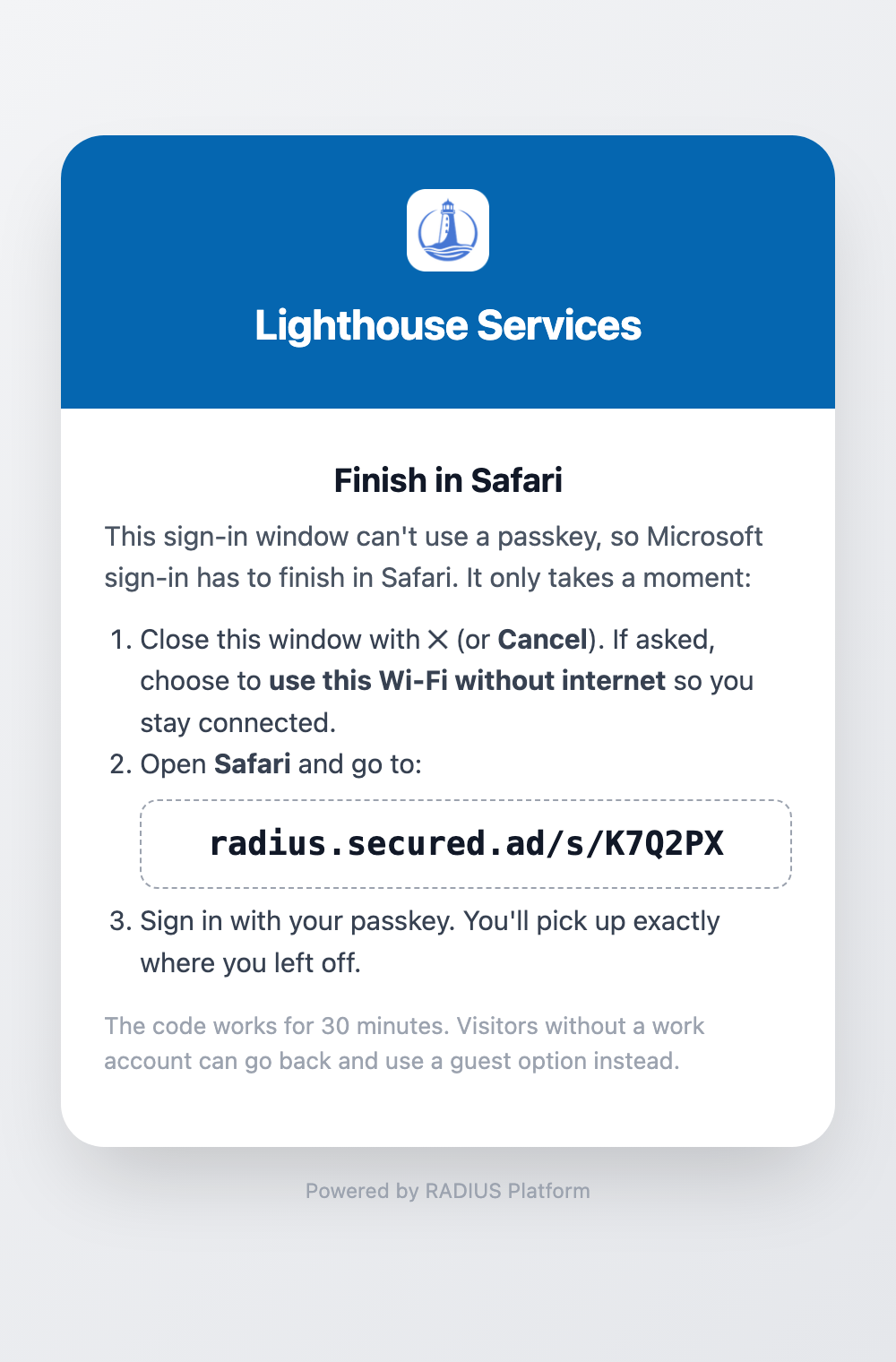
The pop-up sign-in window on iPhone, iPad and Mac (and Android's) can't use passkeys. The page shows a short web address instead:
- Close the window
Tap ✕ (or Cancel). If your phone asks, choose to use the Wi-Fi without internet so you stay connected.
- Open Safari
On Android, open Chrome. Type the address shown, for example radius.secured.ad/s/K7Q2PX.
- Carry on
You pick up exactly where you left off. The code works for 30 minutes.
4Sign in with your passkey
- Enter your work email
Use the same account you set the passkey up with.
- Choose the passkey option
When Microsoft asks how to sign in, pick the passkey option: Face, fingerprint, PIN or security key. Confirm with Face ID, Touch ID or your PIN. If your passkey is on another phone, scan the QR code with that phone.
These sign-ins need a passkey. If Microsoft only offers your password or a code, go back to step 1.
5Finish
- Setting up a device: continue with Add Your Personal Device to Wi-Fi (USR-BYOD-001). After approval, install the profile from the email (USR-WIFI-001).
- Internet access: the page confirms you're connected. It can take up to 30 seconds.
- VPN on an iPhone or iPad: when the VPN needs you, open the Radius Platform app on your home screen and tap Sign in. It opens in Safari, so your passkey works there. The VPN switches to full access a few seconds later.
If something goes wrong
| You see | What to do |
|---|---|
| “You can't get there from here … sign in with your passkey … this app doesn't support it” | You signed in inside the Wi-Fi pop-up window. Close it and use Safari (step 3). |
| Microsoft asks you to set up a passkey, or only offers a password | Set one up at aka.ms/mysecurityinfo over cellular or home Wi-Fi (step 1), then try again. |
| “This code has expired” | Go back to the Wi-Fi sign-in page and start again for a new code. |
| “Sign-in is paused” | The passkey requirement is switched off on the company side, so sign-ins are blocked on purpose. Contact your IT team. |
| I lost the phone that holds my passkey | Contact your IT team. They can remove the old passkey and help you add a new one. |