Add Your Personal Device to Wi-Fi
Get your own phone, tablet, or laptop onto the company Wi-Fi. It takes a few minutes at the office; first requests can be approved automatically.
For EmployeesCompany laptops managed by IT connect to Wi-Fi automatically; they never need enrollment. Use this guide only for personal devices you own, like your own phone or tablet.
How it works
Device setup pages only open on the company's network. From home or cellular you'll see “Device setup only works on the company's Wi-Fi”: connect to the office Wi-Fi (guest Wi-Fi is fine) and open the link again. If the page says iCloud Private Relay is hiding you, turn it off: Settings › your name › iCloud › Private Relay (USR-RELAY-002).
1Open device setup
There are three ways in. Use whichever fits:
radius.secured.ad/enroll/…. Open it in a browser on a device that's on the company network.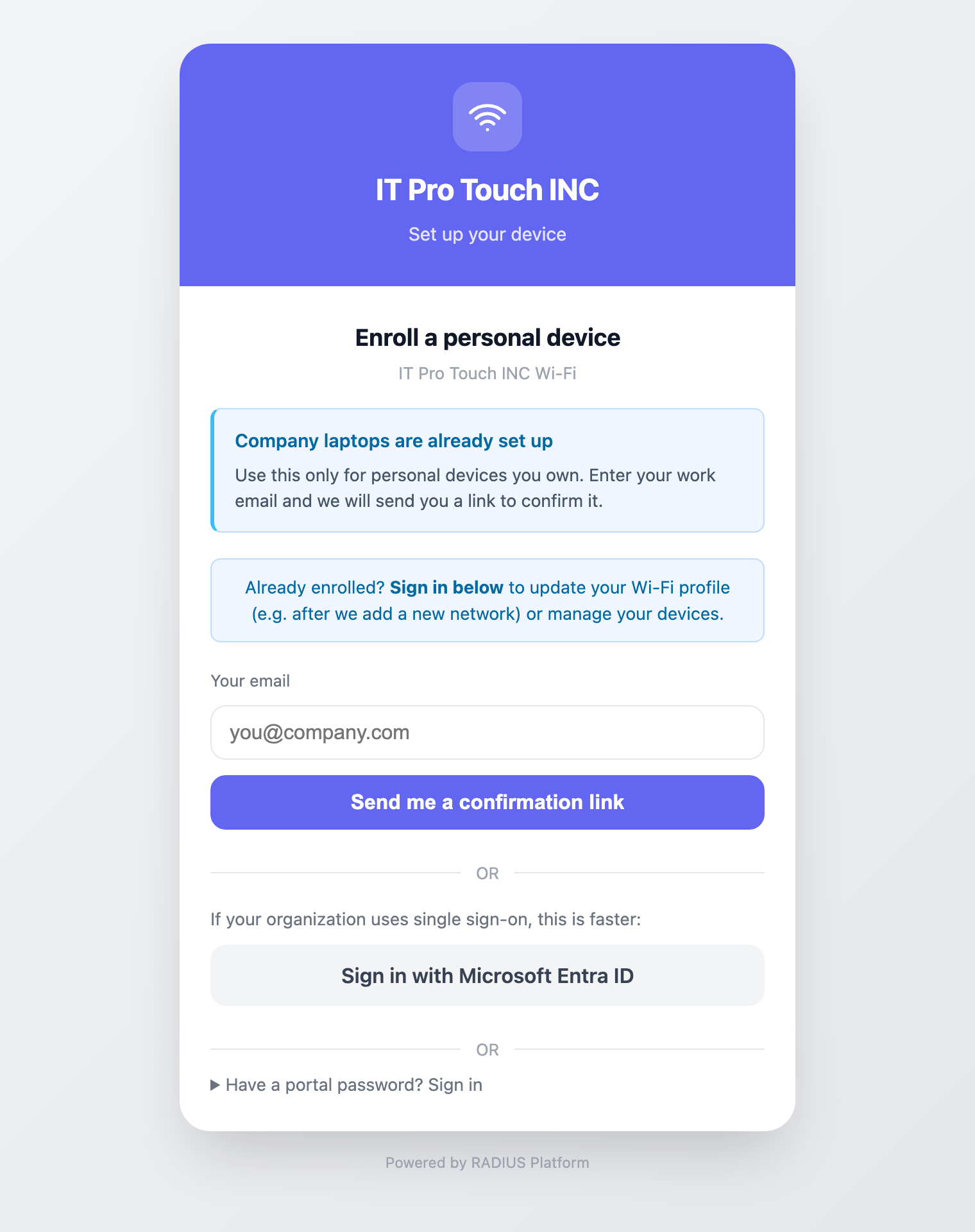
2Confirm who you are
You started in the pop-up window that appears when you join the Wi-Fi (Captive Wi-Fi on iPhone, iPad and Mac, or Android's sign-in window). Microsoft sign-in can't use your passkey there, so the page shows a short address such as radius.secured.ad/s/K7Q2PX.
Close the pop-up. If asked, choose to use the Wi-Fi without internet. Open Safari (Chrome on Android), type the address and carry on where you left off. The code works for 30 minutes. See USR-LOGIN-001, step 3.
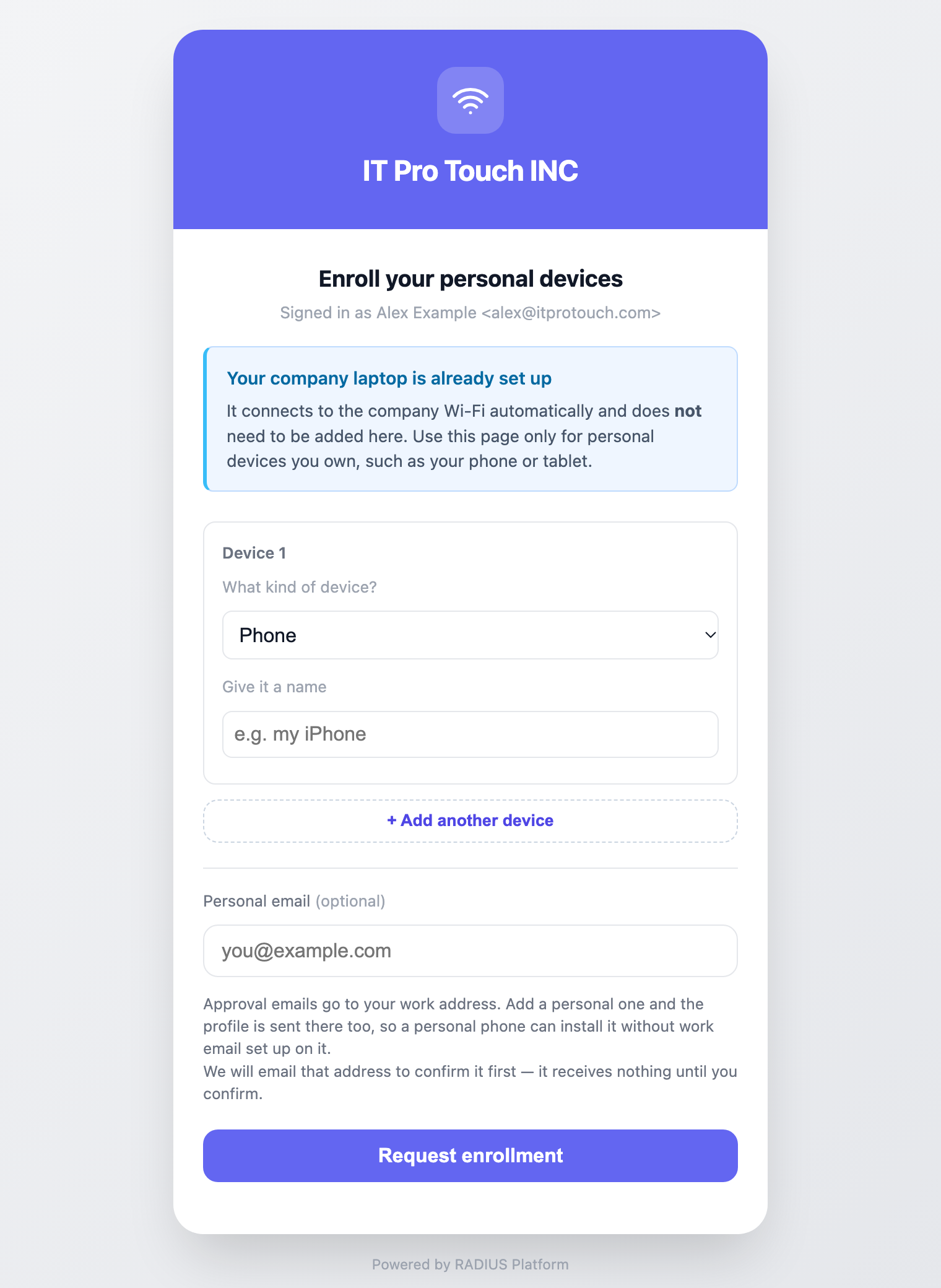
3Add your devices
- Pick the device type
Choose Phone, Tablet, Personal laptop, Personal desktop or Other, and give it a name like “My iPhone”.
- Add them all now
Use + Add another device for up to 5 devices per request. Only your first request can be approved automatically.
- Add a personal email and send
Optional: use the email that's on your phone, so the setup email reaches the phone itself. Then tap Request enrollment.
4Confirm your personal email & get approved
If you added a personal email, we send it a confirmation email from no-reply@secured.ad. Open it and choose Confirm this address. It works for 24 hours (check junk), and the address gets nothing until you confirm.
Every device on your first request is approved as soon as both are true: you signed in with Microsoft using your company address (@itprotouch.com, @thelighthouseservices.com or @redstonefencing.com), and you confirmed your personal email. The confirmation page then says Address confirmed and devices approved.
5Install the profile & connect
After approval you get one setup email per device, sent to your work address and to your confirmed personal address. Open it on the device you're setting up and tap the link for that device. A short page opens on radius.secured.ad; tap Download there:
- iPhone, iPad or Mac: use Install Wi-Fi profile, then open Settings, tap Profile Downloaded and Install (on a Mac, install it in System Settings). The device joins
007Securedautomatically. - Windows or Android: use Download certificate (a
.p12file; if asked for a password, leave it blank). Windows then connects with Connect using a certificate; Android also needs the company's Wi-Fi server certificate and a few settings. Both are in USR-WIFI-001.
The links in the setup email are personal to you: each can be used for 3 downloads within 3 days (opening the page doesn't count). Don't forward the email.
Later: update your Wi-Fi or add a device
Open the enrollment page again on the company network and sign in. Your devices are listed under Your enrolled devices:
- Update Wi-Fi downloads a fresh copy of that device's Wi-Fi setup, for example if your setup links have expired or IT adds a network. Open the page on the device itself: iPhone, iPad and Mac get the Wi-Fi profile; Windows and Android get the certificate file (
.p12) to install as in USR-WIFI-001. If you need the other kind, use the small link under the device (Windows or Android? or iPhone, iPad or Mac?). - Not at the office? Ask IT to re-send your setup email. You get new links at your work address, and at your personal address if you confirmed one.
- To add another device, fill in the form again. Later requests go to IT for approval.
Questions
| Question | Answer |
|---|---|
| Do I need a password for Wi-Fi? | No. Your device gets a secure certificate instead of a password; that's what the profile installs. |
| “Device setup only works on the company's Wi-Fi” | You're not on the company network. Connect to the office Wi-Fi (guest is fine) and open the link again. Turn off iCloud Private Relay if the page mentions it. |
| Microsoft wants a passkey, or says this app can't use it | See USR-LOGIN-001: set up your passkey, and switch to Safari if you're in the Wi-Fi pop-up window. |
| No confirmation email | Check junk. A work-email link expires after 30 minutes and a personal-email link after 24 hours; start again for a new one. |
| “This link has been used 3 times”, or it has expired | Use Update Wi-Fi on the enrollment page, at the office, on the device itself (any device type), or ask IT to re-send your setup email. |
| My device says “pending approval” | It's with IT. You'll get the setup email as soon as it's approved. |