Add Your Personal Devices to Lighthouse Wi-Fi
At a Lighthouse office? Put your own phone, tablet or laptop on the Lighthouse Wi-Fi, starting from My Apps with your Redstone account.
For Redstone Fencing StaffHow it works
Be at a Lighthouse office: device setup only opens on the Lighthouse network. Use your redstonefencing.com account, and add only personal devices you own.
Your Redstone account can use the Lighthouse Wi-Fi, so the setup page and emails show the Lighthouse Services name and logo, and the Wi-Fi is called LHS-Secure.
1Open the shortcut in My Apps
- Open My Apps
At the Lighthouse office, go to
myapps.microsoft.comand sign in with your Redstone work account (for example riley@redstonefencing.com). Microsoft may ask for your passkey; see Sign In with Your Passkey (USR-LOGIN-001). - Find this tile and click it
Lighthouse Wi-Fi and Device Enrollment
Look for the lighthouse with Wi-Fi waves on a dark blue square. It opens Lighthouse's device setup, signed in with your Redstone account. Can't see it? Type Wi-Fi in the My Apps search box.
2List your devices and request them
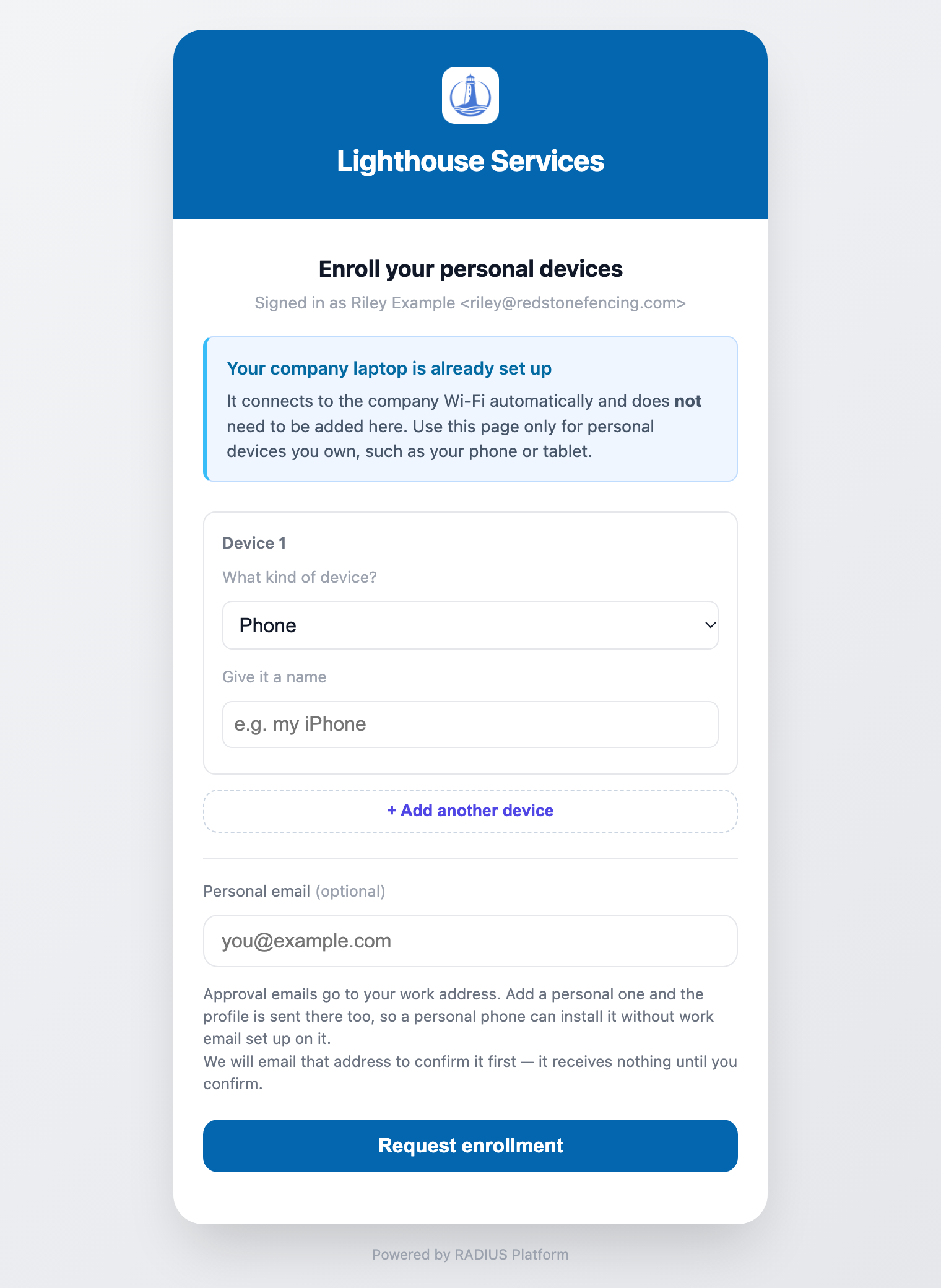
- Add each device
Pick what it is (Phone, Tablet, Personal laptop, Personal desktop or Other) and give it a name like “Riley's iPhone”.
- Add them all now
Use + Add another device for up to 5 devices. Everything on this first request is approved automatically; devices you add later wait for IT.
- Add your personal email and send
Use the email on your phone, so the setup email reaches the phone itself. Then click Request enrollment.
3Confirm your personal email
- Open the confirmation email
It comes from
no-reply@secured.ad. Check junk if it isn't there. The link works for 24 hours. - Click the link
You'll see Address confirmed and devices approved. The devices from your first request are approved on the spot.
4Install on each personal device
You get one setup email per device, at your work address and your confirmed personal address. Open it on that device and tap the link for it; on the short page that opens, tap Download:
- iPhone, iPad or Mac: use Install Wi-Fi profile, then open Settings, tap Profile Downloaded and Install (on a Mac, install it in System Settings). The device joins LHS-Secure by itself.
- Android or Windows: use Download certificate (if asked for a password, leave it blank) and connect to LHS-Secure with that certificate. Android also needs the company's Wi-Fi server certificate.
Step-by-step help for each device type, including the Android server certificate: Connecting to Company Wi-Fi (USR-WIFI-001).
Each setup link can be used for 3 downloads within 3 days. Don't forward the email.
Adding another device later
Click the tile in My Apps again (at a Lighthouse office) and request the new device. Later requests go to IT for approval; you'll get the setup email once it's approved.
If something goes wrong
| You see | What to do |
|---|---|
| “Device setup only works on the company's Wi-Fi” | You're not on the Lighthouse network. Try again at a Lighthouse office. If the page mentions iCloud Private Relay, turn it off (Settings › your name › iCloud › Private Relay). |
| “Access not authorized” | Your Redstone account isn't set up for Lighthouse Wi-Fi device setup yet. Contact IT. |
| “Finish in Safari” | You started in the Wi-Fi pop-up window. Type the short address it shows (like radius.secured.ad/s/K7Q2PX) into Safari, or Chrome on Android. See USR-LOGIN-001, step 3. |
| No confirmation email | Check junk. The link expires after 24 hours; open the tile again to send a new one. |
| “This link has been used 3 times”, or it has expired | Ask IT to re-send your setup email. Or, at a Lighthouse office, open the tile on that device and tap Update Wi-Fi next to it: iPhone, iPad and Mac get the profile, Android and Windows the certificate file. |
| A device is still waiting | It's with IT for approval. You'll get the email as soon as it's approved. |